My training
My training is an agent's home in CallCoach. It shows what to practise next, the training modules a manager has assigned, the Call Simulator with that assignment already loaded, and the agent's own performance and reviews.
Beta
Training is being introduced gradually. It appears once it has been enabled for your CallCoach environment — if you don't see My training, it isn't switched on yet.
Getting there
Agents land on My training when they log in, and can return to it from My training in the top navigation at any time.
The page has three tabs: My training, Simulator and My performance. Your name, team and email are shown under the heading; they are read-only.
The My training tab
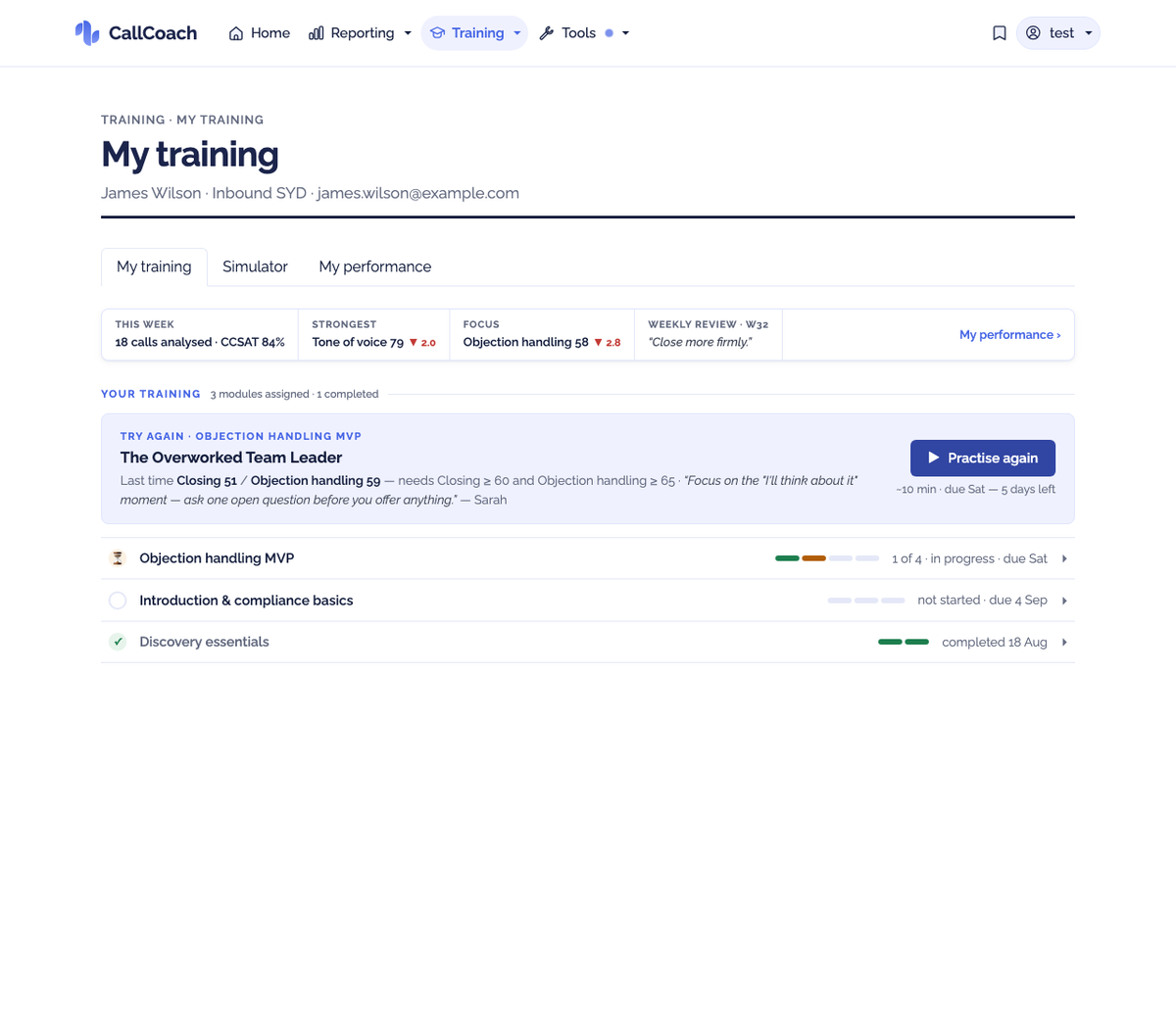
This week
A single line across the top of the page carries the week so far: how many of your calls were analysed and your CCSAT, your strongest and weakest metric with the change since your last weekly review, and a line from that review. My performance › at the end opens the third tab.
If no calls of yours have been analysed yet this week, the line says so rather than showing zeros.
What to practise next
Under Your training sits the one thing worth doing now — the module that is due soonest, and within it the first scenario you have not yet met. It tells you what the scenario is, why it is next, roughly how long it takes and when the module is due. Practise takes you to the Simulator tab with that scenario ready.
It has four faces:
- Continue — you have not practised this scenario yet.
- Try again — you practised it, but the scores were below what the module asks for. The line shows what you scored and what is needed.
- Analysing — your last call on it is still being analysed. You can practise it again anyway while you wait.
- All caught up — nothing is open. Free practice still counts as practice.
Your modules
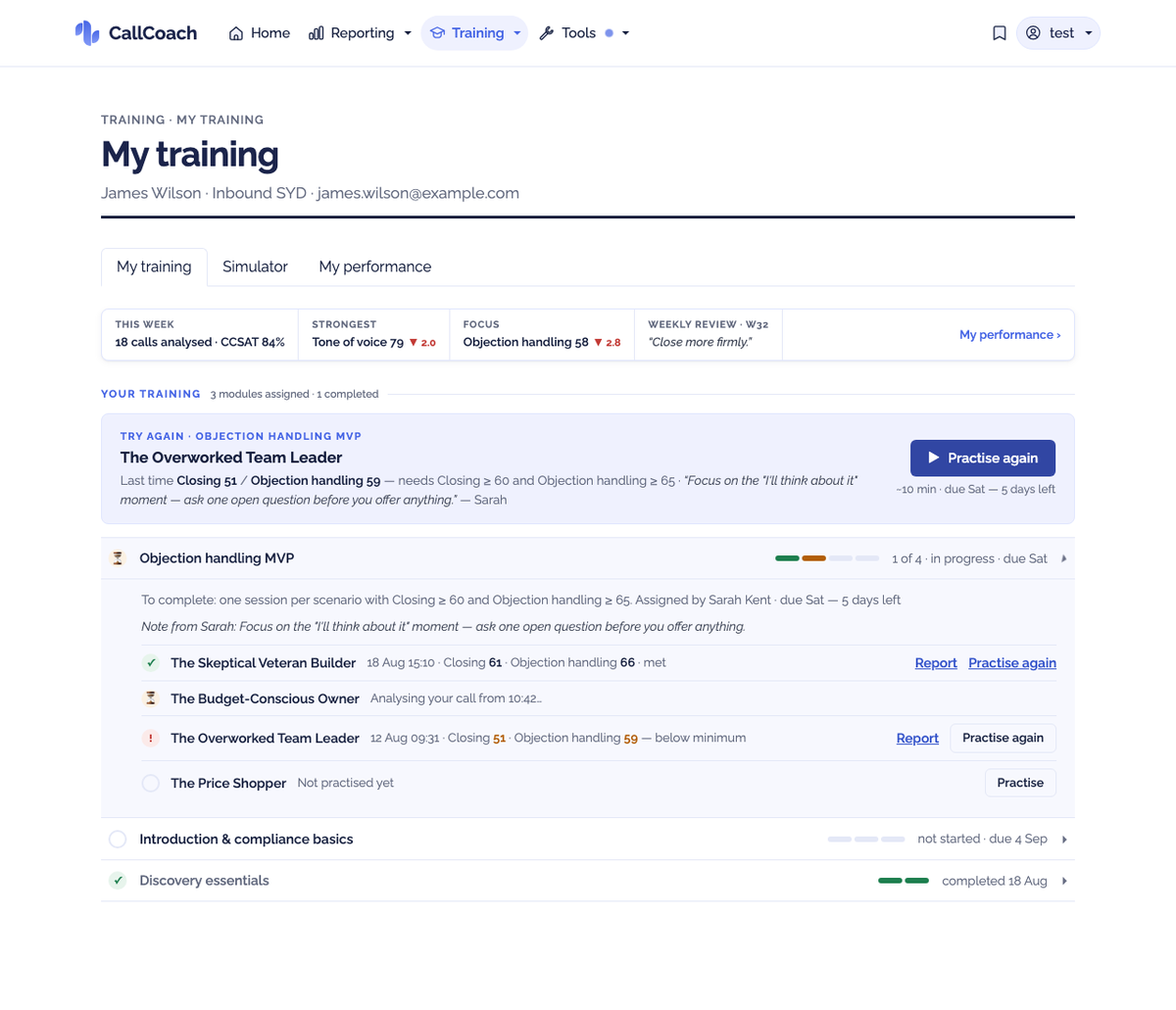
Below that, every module you have been assigned, soonest due first. Each row shows a status (○ not started · ▶ in progress · ✓ completed), the module name, a segmented bar with one segment per scenario, how many you have met, and when it is due. Completed modules are dimmed but stay in the list.
Click a row to open it. The detail shows:
- To complete — the rule in plain words, for example one session per scenario with Objection handling ≥ 65 and Closing ≥ 60, or practise each scenario once.
- Who assigned it, when it is due, and their note to you.
- One line per scenario with where you stand: met, below minimum (with the failing score in amber), analysing, or not practised yet — each with Report to open the feedback, and Practise or Practise again.
Only one module is open at a time.
The Simulator tab
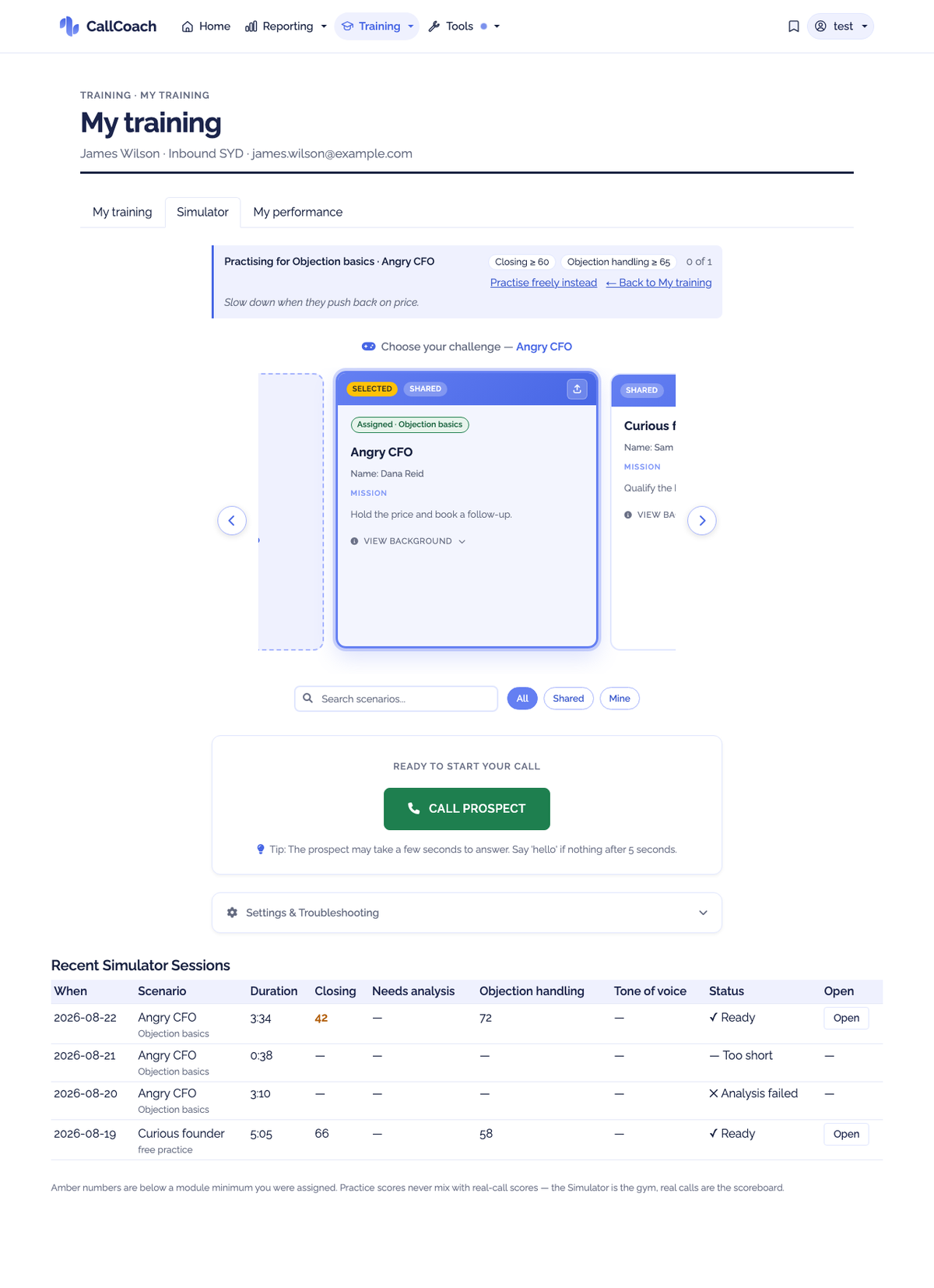
The Call Simulator itself is unchanged — see Call Simulator for how a practice call works.
What is added is a bar above it saying what you are practising for: Practising for <module> · <scenario>, the minimum scores the module asks for, your manager's note, and links to Practise freely instead or ← Back to My training. Choosing a different scenario in the Simulator updates the bar by itself: if that scenario belongs to a module you have been assigned, the call counts towards it.
Practising a scenario nobody assigned you is fine — the bar just says Free practice, and the call counts as practice but not towards a module. That is the only way a call is free practice: if the scenario is in one of your open modules, the call counts towards it however you arrived at it, so Practise freely instead takes you back to pick a different scenario rather than making this one stop counting.
Note
You cannot switch tabs while a call is live. Finish or end the call first.
Recent Simulator Sessions
Under the Simulator is a table of your recent practice calls: when, which scenario (and which module, or free practice), how long, your scores, and the status.
- ⏳ Analysing — the report is being written. The row updates by itself when it arrives; you don't need to reload.
- ✓ Ready — Open shows the full report.
- — Too short — under a minute, so it wasn't analysed.
- ✕ Failed — the analysis did not complete. Click Try again on the Simulator straight after the call, or practise again.
Scores shown in amber are below a minimum one of your modules asks for; hover to see the minimum.
The My performance tab
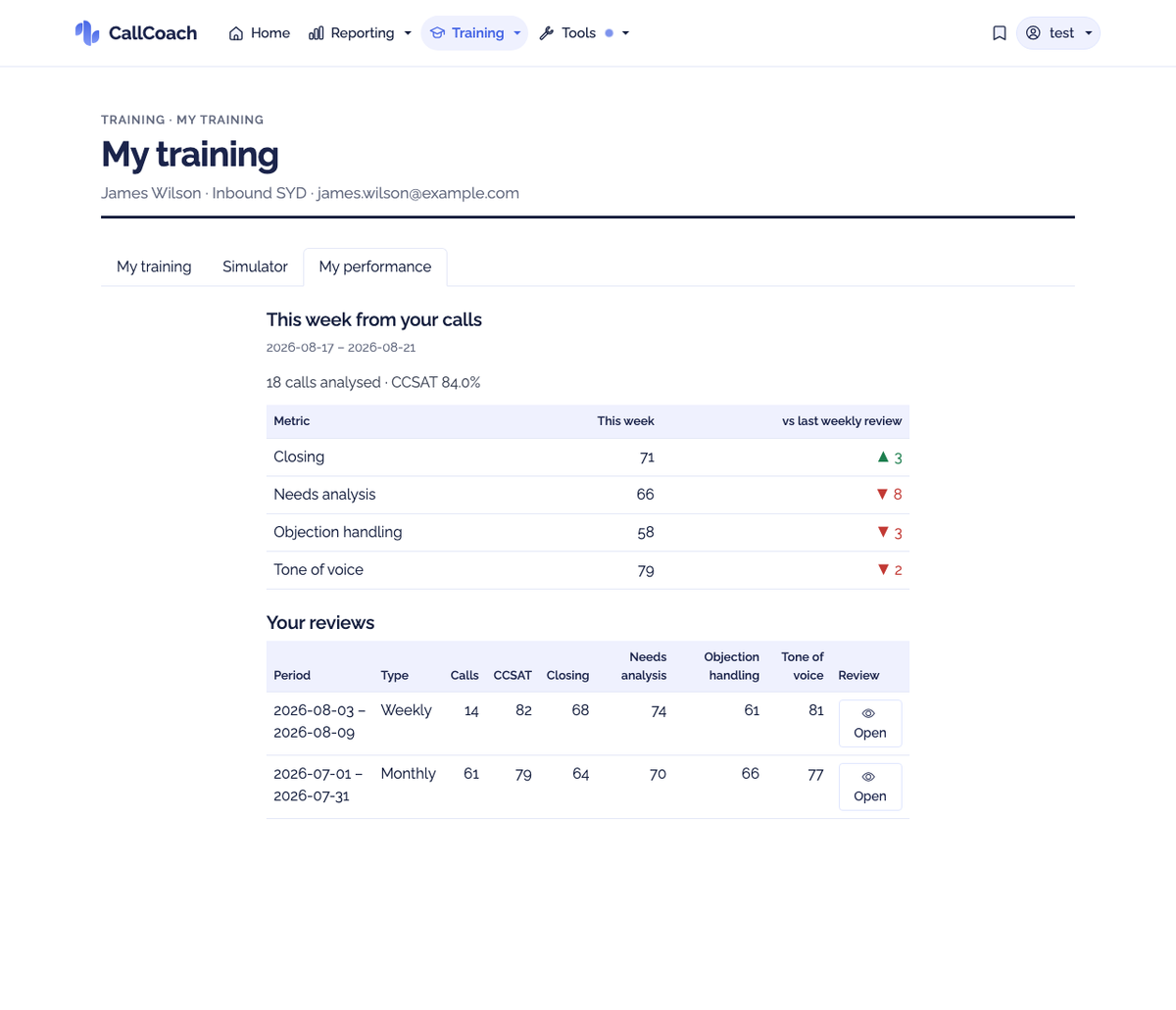
This week from your calls repeats the week's live figures in full: calls analysed, CCSAT and every metric your organisation scores, each with the change since your last weekly review.
Your reviews below it is your own weekly and monthly reviews — period, type, calls, CCSAT and your scores — with Open on each to read the full review.
Common Questions
Do practice calls affect my real performance figures?
No. Practice scores are kept apart from your real-call scores. The Simulator is the gym; real calls are the scoreboard.
Can my manager see my practice calls?
Practice on an assigned module is visible to your managers, with the scores. Free practice counts only as practice.
Why is my call marked "Too short"?
Calls under a minute are not analysed. Practise again and stay on the call a little longer.
I practised a scenario but the module still isn't complete.
If your module asks for minimum scores, one single session has to meet every minimum at the same time. Meeting them across two different calls doesn't complete the scenario — check the module's detail row for what is still needed.
My module is complete but I want to practise it again.
Go ahead. Completed modules stay in your list, and Practise again on any scenario still works. Once complete, a module stays complete.
A module disappeared from my list.
Your manager removed it. The practice you had already done is kept.