Training modules and assignments
Training lets you set practice on the Call Simulator and follow it. You build a module — a named set of scenarios plus the rule that completes it — assign it to agents with a due date, and watch progress fill in from their practice calls.
Beta
Training is being introduced gradually. It appears once it has been enabled for your CallCoach environment — if you don't see Modules and Assignments under Training, it isn't switched on yet.
Note
Modules and Assignments need the training management permission, which comes with the Admin, System Admin, QA and Team Lead roles. The Simulator entry in the same menu is unaffected.
Modules
Go to Training ▸ Modules. The list shows each module's name, how many scenarios it holds, its completion rule, how many assignments of it are open and completed, and when it was last changed.
Building a module
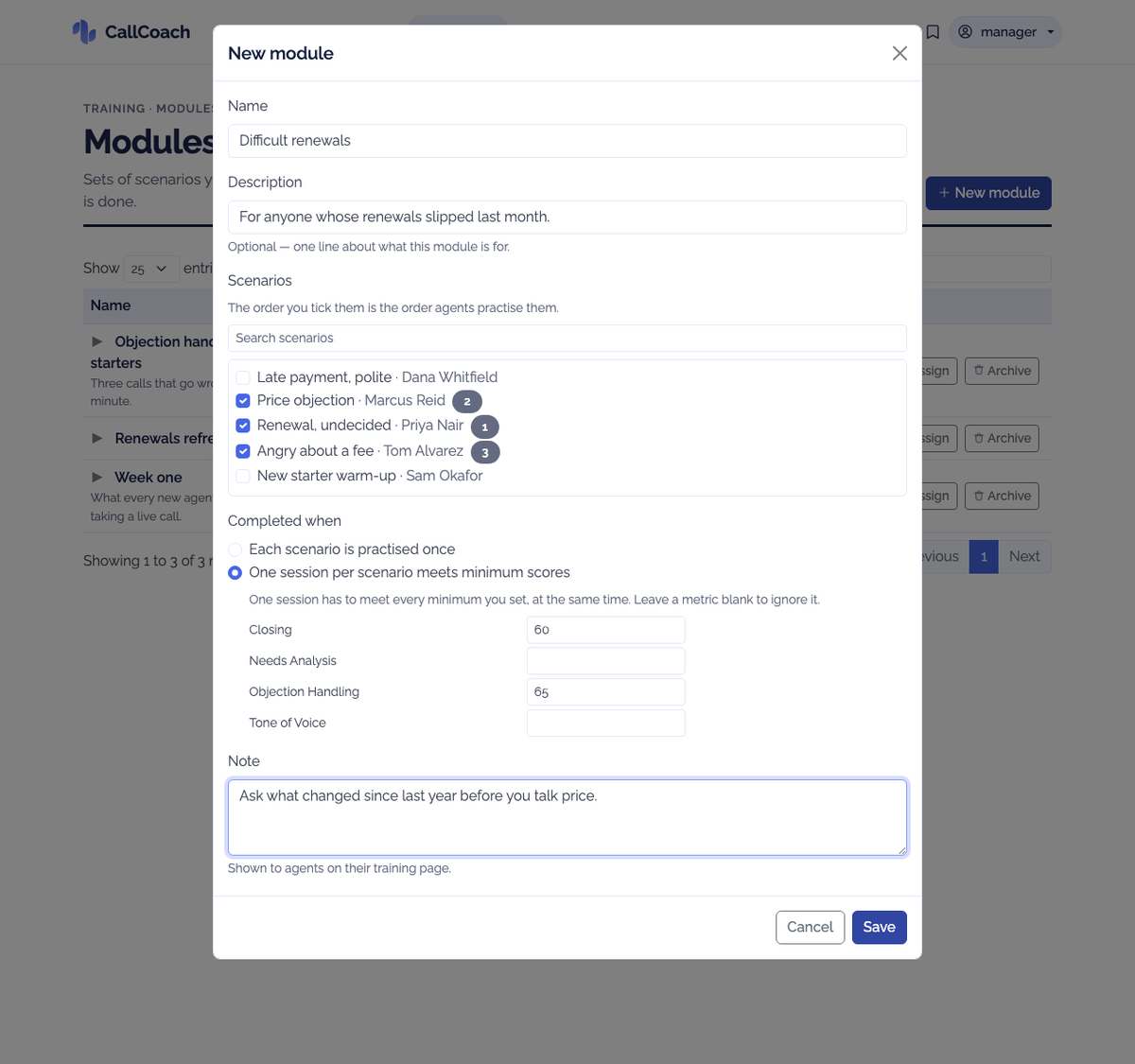
Click New module and fill in:
| Field | What it does |
|---|---|
| Name | What agents see. Required, and unique within your organisation. |
| Description | Optional — one line about what the module is for. Managers only. |
| Scenarios | Tick the simulator scenarios to practise. The order you tick them is the order agents practise them. |
| Completed when | Either Each scenario is practised once, or One session per scenario meets minimum scores. |
| Note to agents | Optional coaching note. Agents see it on their training page and in the assignment email. |
Choosing One session per scenario meets minimum scores reveals a minimum for each metric your organisation scores. Leave a metric blank to ignore it.
Warning
A minimum-scores rule is met by one session reaching every minimum at the same time. Meeting them across two separate calls does not complete the scenario.
Only scenarios that already exist in your organisation's Simulator can be added to a module. If the list is empty, share some scenarios organisation-wide first — see Call Simulator.
Editing and archiving
Edit reopens the builder. Changing the rule changes what completes the module from that moment, including for assignments already running.
Archive retires a module: assignments that are already out keep working, but it can no longer be assigned. Archiving is not deletion — nothing is lost.
Assigning a module
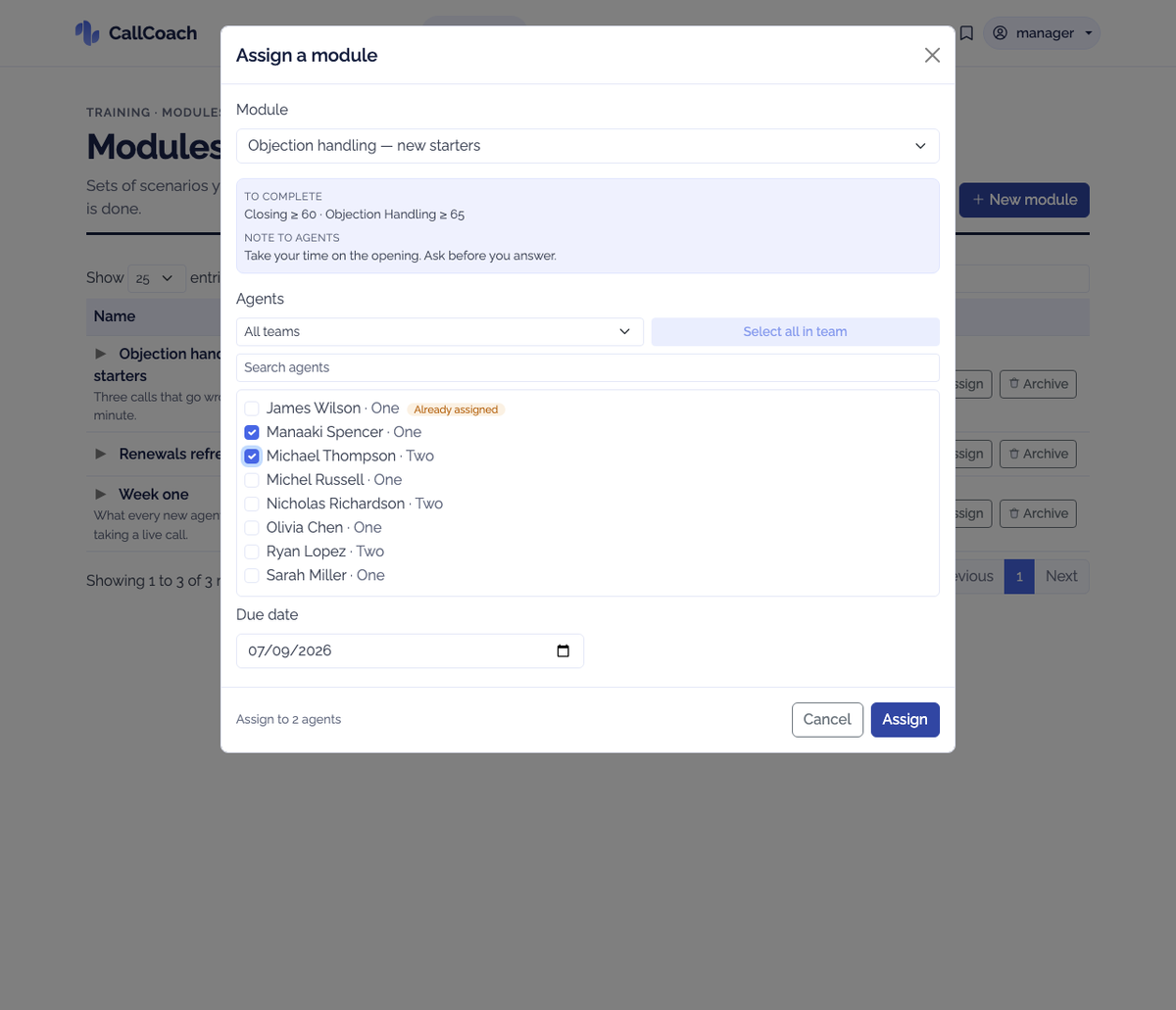
Click Assign on a module, or Assign module on the Assignments page, and:
- Choose the module (already filled in if you came from the module's own row).
- Pick the agents. Filter by team, use Select all in team, or search by name. Agents who already have this module open are marked Already assigned — you can still assign it again, which starts a second assignment and keeps the first.
- Set a Due date. It cannot be in the past, and it is optional.
- Click Assign.
Each agent gets one email: what the module is, when it is due, the rule in plain words, your note, and a link that takes them straight to their training page. That is the only email Training sends — there are no reminders.
Note
Agents need an email address on their record before they appear in the Assign dialog. An assignment is delivered by that email, so an agent without one cannot be assigned — add the address on the Agents page and they will show up.
Assigning a module also gives those agents access to its scenarios, including ones you had kept to yourself.
Assignments
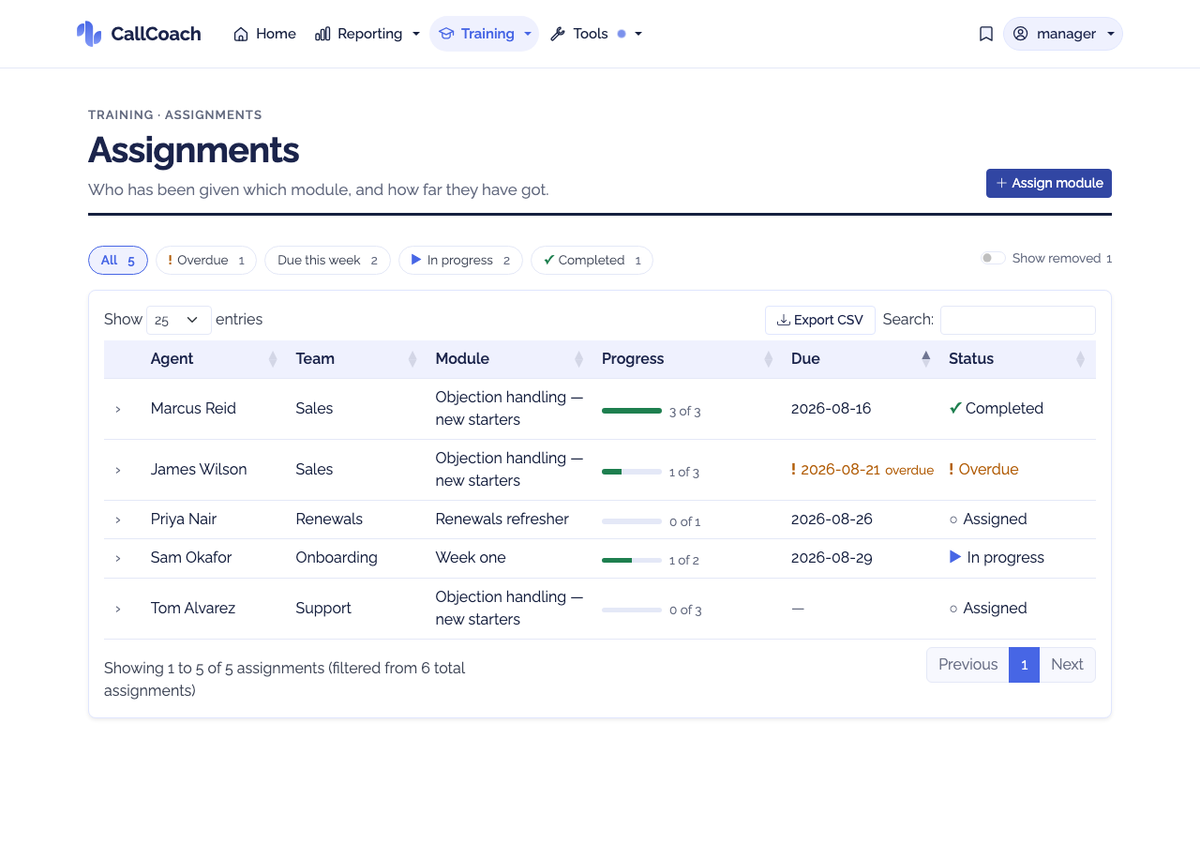
Training ▸ Assignments is who has which module and how far they have got: agent, team, module, progress, due date and status.
Above the grid, chips filter it and carry counts: All, Overdue, Due this week (the next seven days), In progress and Completed. Show removed brings back assignments you have removed.
Click a row to expand it. The detail shows:
- The completion rule, and each metric's best score measured against it — for example Closing 72 ✓ (≥ 60).
- Who assigned it and when, when it completed, and your note.
- Every practice call on this assignment, with its scores and a Report link.
- Open latest report and Remove from module.
Remove from module takes the module off that agent's list. The practice they have already done is kept, and the row stays visible under Show removed.
Exporting
CSV exports what you are looking at — the filtered rows, with everything the detail row holds: the rule, who assigned it, the dates, the last practice and the best score per metric.
Common Questions
What counts as progress?
Any practice of a scenario that sits in one of that agent's open modules counts towards it — however they got to the Simulator, and whether or not they used the Practise button. If the scenario is in more than one open module, the one due soonest gets it. Practice only counts as free practice when the scenario is in no open module of theirs.
Can I mark an assignment complete by hand?
No. Completion is worked out from real practice scores, so it always reflects what an agent actually did. Once an assignment completes it stays complete, even if a later call scores lower.
Can I assign a module to a whole team?
Yes — filter by team in the Assign dialog and use Select all in team. Assignments go to agents individually; the team is shown as a column.
Someone finished a module. Can I set it again?
Yes. Assigning a completed module creates a new assignment and keeps the old one, so the history stays intact.
Why is an agent's score amber?
It is below a minimum the module asks for. Agents see the same colouring, with the minimum in the tooltip.
Can team leads only see their own team?
Not in this version — Training is organisation-wide for everyone who holds the permission.
Do practice scores show up in reporting?
No. Practice scores are kept separate from real-call scores everywhere, including analytics and reviews.